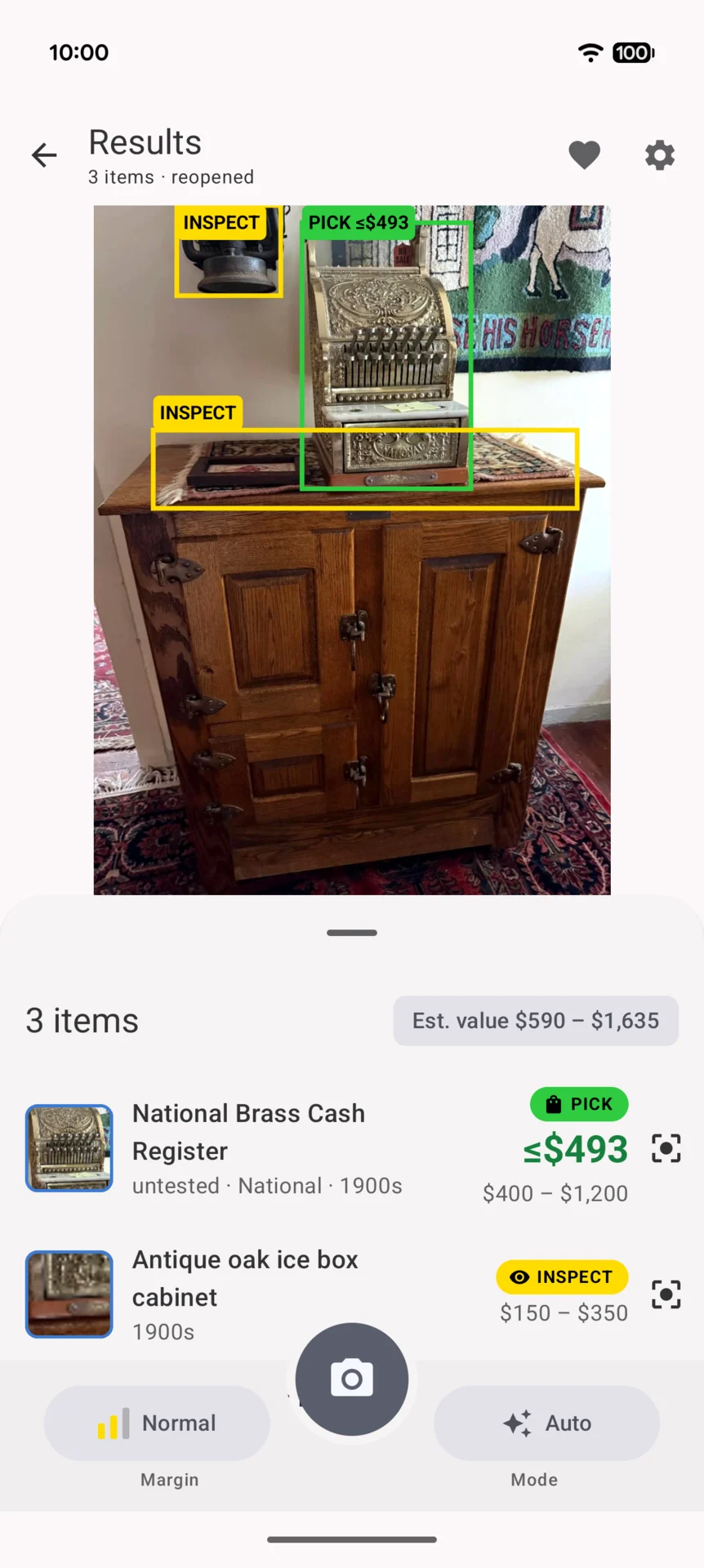
Photograph a table or shelf at an estate sale, yard sale, flea market or thrift store. Get item-by-item decisions and suggested buying limits. Check several items together, take a closer look, and save the finds worth returning to.
For Android 15 or newer. On-device AI features need Gemini Nano; the app says what changes without it. Cloud analysis uses your own Gemini API key or Picania Plus, a monthly subscription with no key needed.
Actual app screen · Tap to enlarge. AI estimates, not verified values.
A decision for each item. Here’s what it means.
PICKConsider it at the right price.
INSPECTCheck a detail before deciding.
MAYBEA thin-margin find in a category you want.
SKIPMove on to the next find.
01 / AT THE TABLE
A single item. A table. A shelf.
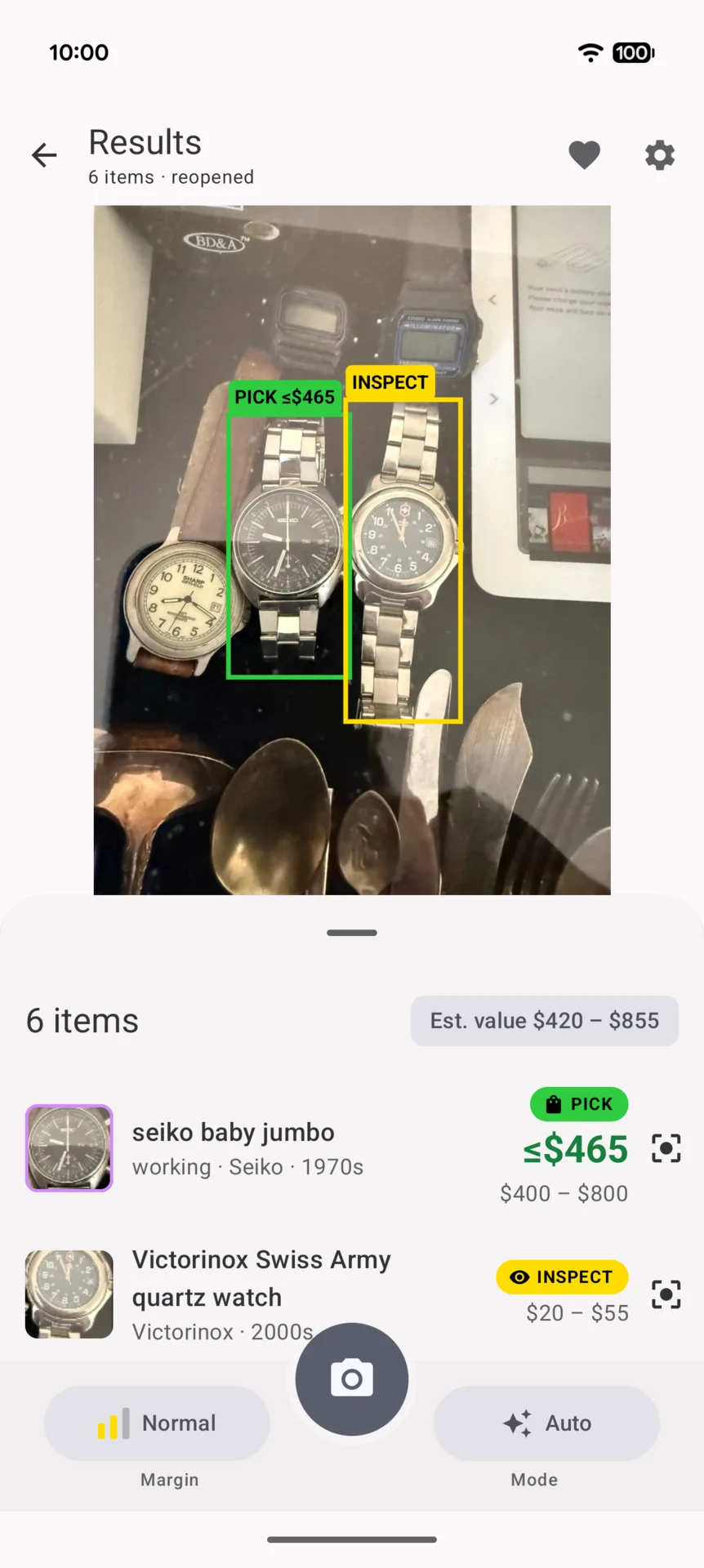
Start with a photo of the goods. Picania identifies items, estimates their value and uses your interests and margin to suggest what deserves a closer look.
One photo, 6 items. Actual app screen · Tap to enlarge.
01
Scan the table.
Take a photo in Quick Scan, or use Scene Shots for a wide view and closer angles. You can also import one photo or a set of two or three from your gallery. In Cards mode, lay up to nine trading cards in a grid, shoot once for a row per card, then flip them and shoot the backs.
02
See what deserves attention.
Find each item in the photo and read its verdict. A PICK comes with a suggested buying limit. An INSPECT points to something that needs a closer look.
03
Make the decision yours.
Choose Flip for resale potential, Collect for scarce pieces worth keeping, or Auto to try Flip first and then Collect. In a sale, star the items you want on your shortlist.
Working through books or records?
Quick Scan reads barcodes and checks bundled book and music lists for copies worth inspecting. A list hit is a reason to check the copyright page or disc details, not proof of a first edition or valuable pressing. Tap a result to check further, or select several scans in Manage Items to group them into one result.
Picania offers AI-assisted estimates, not authenticated appraisals. Condition, identity and value can be wrong. Check the item before you buy.
02 / CHECK THE ITEM
A price is only useful with the details.
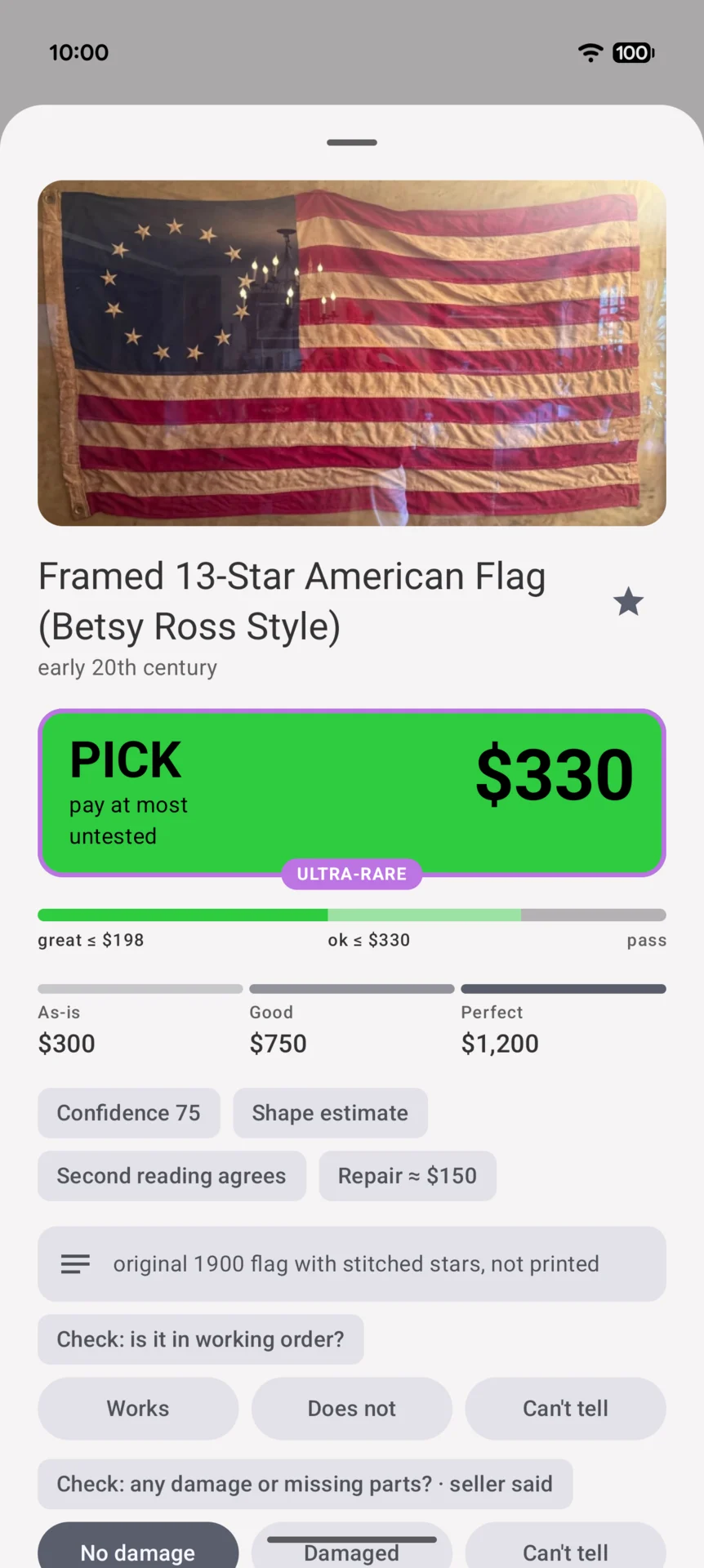
Open an item to see the suggested buying limit, condition estimates and what to check. For this flag, the sheet keeps a note about its stitched stars and asks about damage and missing parts.
Need more evidence? Use Inspect for a close-up of a maker’s mark, label or other identifying detail.
Flip’s buying limit allows for fees, shipping and estimated repairs. Collect can suggest the full working-value estimate for a scarce item. Neither is a guaranteed resale value.
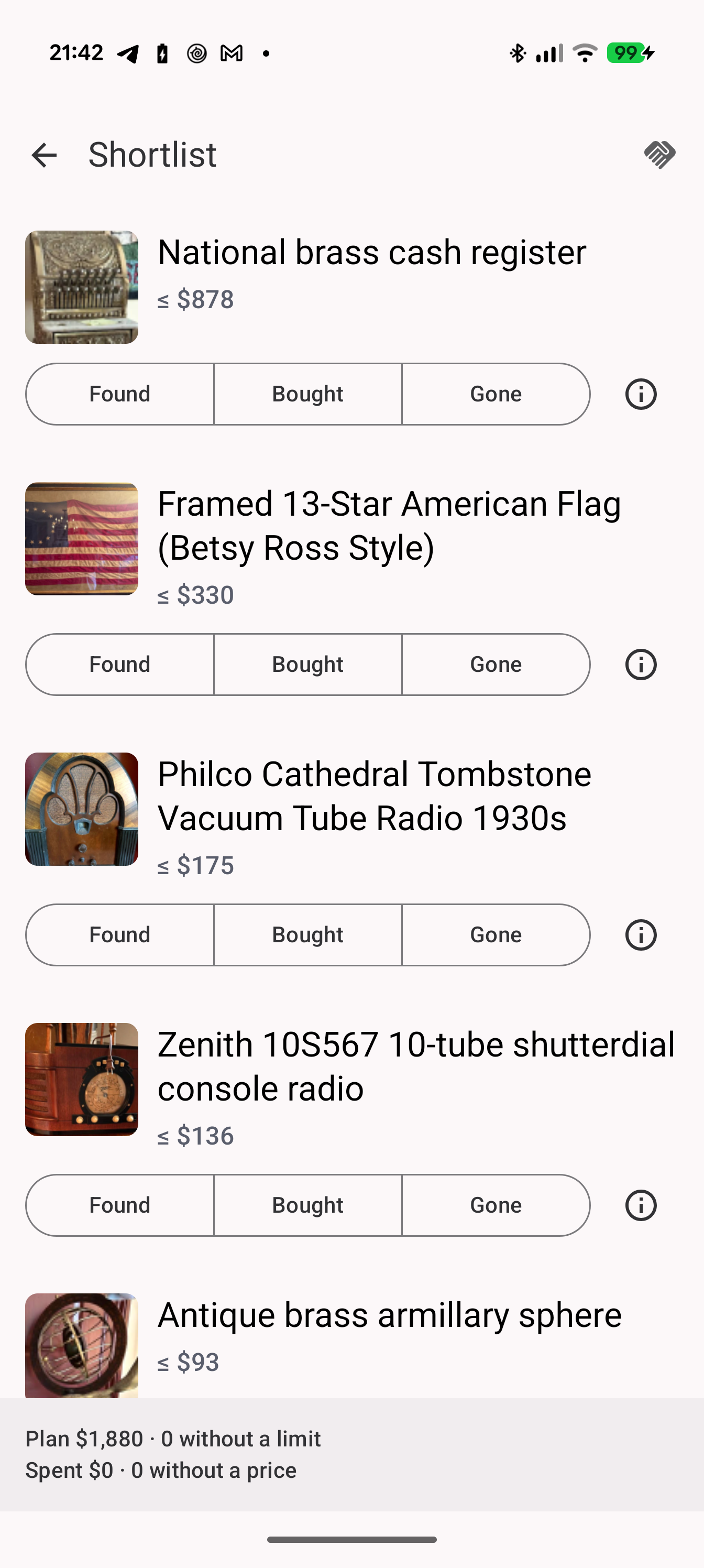
The detail behind the verdict. Actual app screen · Tap to enlarge.Your saved finds and limits, together. Actual app screen · Tap to enlarge.
03 / PREPARE FOR THE SALE
Walk in with a shortlist.
Import sale photos from your gallery or share an estatesales.net sale link to Picania (supported sites). Choose which photos to analyze and star the promising items. At the sale, open your shortlist to revisit the photos and keep your buying limits close. Share the sale, with its photos, results and your notes, with a friend.
Mark what you found, bought or missed. Keep track of what you planned to spend and what you actually paid.
Open Haggle from your shortlist to show the seller the item’s photo and name. Your buying limit, value estimates and verdict stay hidden in the normal view.
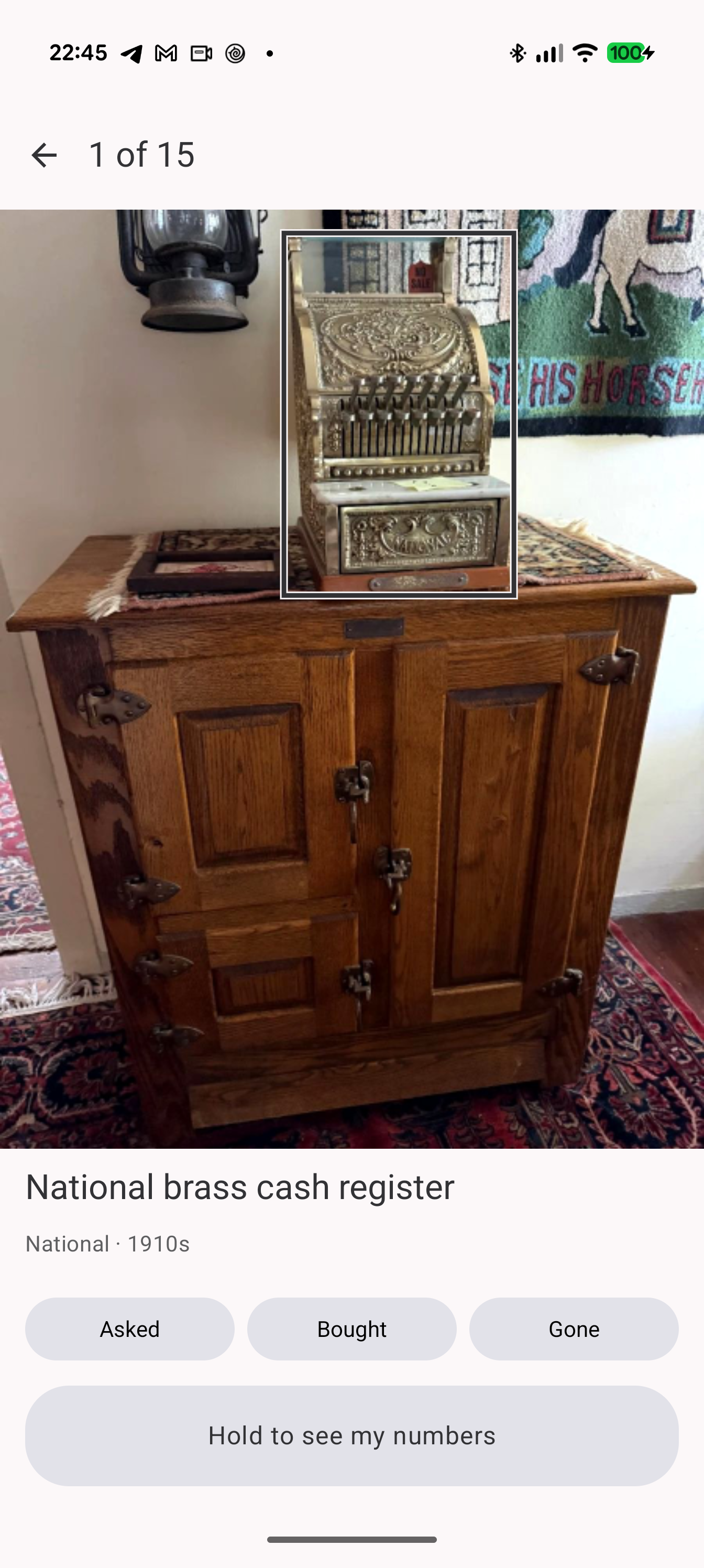
Swipe through the items still on your list and pinch to zoom. Record the asking price, mark a purchase, or mark an item Gone. Hold My details for half a second when you want a brief look at your own figures.
Shown here with your numbers hidden. Returning to the shortlist shows your buying limits again.
Haggle mode, with your numbers hidden. Actual app screen · Tap to enlarge.
05 / ON YOUR PHONE
Your phone does the first look.
Screened before cloud analysis.
Before cloud analysis, your phone checks the photo, pixelates detected faces (not on a Cards mode grid, where cards carry printed faces), blocks photos that mostly show people, and strips location metadata. Personal-text redaction is best-effort: it can miss names, handwriting, non-US formats and other details.
Clear about what leaves.
Approved photos and relevant item details go to Google’s Gemini, directly with your own key or through Picania’s server with Plus, which counts credits and keeps neither the photos nor the answers. Barcode lookups send codes to catalogue services. Search opens a text query; Image search shares an item crop with Google Lens or an app you choose. Sale imports fetch the listing and its photos. Model and price checks also use the network. Sharing a sale sends its photos, results and your notes to whoever you choose.
Your history stays with you.
Scan history and shortlists are stored on your phone. For cloud photo analysis, identification and value estimates come from Gemini; the app calculates the verdict on the phone using the selected mode, confidence and scoring rules.
A LITTLE MORE CONTEXT
What to know before you install.
Which phones is Picania for?
Picania requires Android 15 or later. Phones with Gemini Nano get the on-device safety check and name detection for the personal-text blur. On a phone without it the app says so at first launch and in Settings: names in free text may stay visible, a photo with a detected face is not uploaded (except small faces in Cards mode), and duplicates merge by rules only. Check the Google Play listing on your phone for installation compatibility.
Is it for reselling or collecting?
Flip checks resale potential. Collect looks for scarce items worth keeping and can use the full working-value estimate as the buying limit. Auto tries Flip first, then Collect. Category interests affect Flip and Auto; a wanted category can produce a MAYBE for a thin-margin item. Collect uses scarcity rather than those interests.
Does everything need an internet connection?
Cloud identification and value estimates need a connection. Saved results and shortlists can be viewed offline. Barcode scanning and bundled book/music list checks run on the phone, but scans can also make catalogue requests or need cloud analysis. List checks are screening hints, not offline valuations.
What does the Margin setting change?
High, Normal and Low set the least profit a Flip PICK must leave you at its buying limit: about $40, $20 or $10. They do not change the fee, shipping or repair allowances in the buying-limit calculation. Cards and Collect have their own rules. Category interests can also affect which items qualify.
What do I need for cloud analysis?
Either add your own Gemini API key in Settings, test it and choose a model (Picania shows the estimated cost of your scans; charges depend on your Gemini account), or subscribe to Picania Plus in Settings: 608 AI credits a month (a typical photo scan uses about one), or 2,138 with Plus Pro, priced at cost. Credits reset every month and unused credits do not carry over.
Can I double-check an expensive pick?
Enable “Second opinion on expensive picks” in Settings and choose its price threshold. Eligible picks get an additional cloud reading. Conflicting identification can turn a PICK into INSPECT; a second reading is still an AI estimate.
TAKE PICANIA TO YOUR NEXT SALE.
Find your next pick.
For Android 15 or newer. On-device AI features need Gemini Nano; the app says what changes without it. Use your own Gemini API key or Picania Plus for cloud analysis.